


You're on: OS
Showing posts with label OS. Show all posts
Saturday, June 8, 2013

Tuesday, May 21, 2013
Ubuntu Desktop 13.04

You can choose between two options when you download Ubuntu for a desktop PC. Ubuntu 13.04 gives you all the latest features, while Ubuntu 12.04 LTS comes with extended support.
EXTENDED SUPPORT
12.042 LTS (Long-Term Support) Release
32-Bit: [LINK]
64-Bit: [LINK]
Full Installation Instructions at [I] section
LATEST UPDATE
Ubuntu 13.04 (+cutting-edge feature)
32-Bit: [LINK]
64-Bit: [LINK]
Full Installation Instructions at [I] section
[I] INSTALLATION
1a. Using a DVD?
It’s easy to install Ubuntu from a DVD. Here’s what you need to
do:
Put the Ubuntu DVD into the DVD-drive
Restart your computer. You should see a welcome screen prompting
you to choose your language and giving you the option to install Ubuntu or try
it from the DVD.
If you don’t get this
menu, read the booting from the
DVD guide for more information.
1b. Using a USB drive?
Most newer computers can boot from USB. You should see a welcome
screen prompting you to choose your language and giving you the option to
install Ubuntu or try it from the CD.
If your computer doesn’t
automatically do so, you might need to press the F12 key to bring up the boot menu, but be careful
not to hold it down - that can cause an error message.

2. Prepare to install
Ubuntu
·
We recommend you plug your computer into a power source
·
You should also make sure you have enough space on your computer
to install Ubuntu
·
We advise you to select Download updates while installing and
Install this third-party software now
·
You should also stay connected to the internet so you can get
the latest updates while you install Ubuntu
·
If you’re not connected to the internet, we’ll help you set up
wireless at the next step

3. Set up wireless
If you are not connected
to the internet, you will be asked to select a wireless network, if available.
We advise you to connect during the installation so we can ensure your machine
is up to date. So, if you set up your wireless network at this point, it’s
worth then clicking the Back button to go back to the last screen (Preparing to
install Ubuntu) and ticking the box marked ’Download updates while
installing’.

4. Allocate drive space
Use the checkboxes to
choose whether you’d like to Install Ubuntu alongside another operating system,
delete your existing operating system and replace it with Ubuntu, or — if
you’re an advanced user — choose the ’Something else’option

5. Begin the installation
Depending on your previous selections, you can now verify that
you have chosen the way in which you would like to install Ubuntu. The
installation process will begin when you click the Install Now button.
Ubuntu needs about 4.5 GB to install, so add a few extra GB to
allow for your files.
Not sure about this step?
Windows users can use the Windows installer,
which will install and uninstall Ubuntu in the same way as any other Windows
application. It’s simpler and completely safe.

6. Select your location
If you are connected to
the internet, this should be done automatically. Check your location is correct
and click’Forward’ to proceed. If you’re unsure of your
time zone, type the name of the town you’re in or click on the map and we’ll help
you find it.
TIP: If you’re having problems connecting to the Internet, use
the menu in the top-right-hand corner to select a network.

7. Select your preferred
keyboard layout
Click on the language
option you need. If you’re not sure, click the ’Detect
Keyboard Layout’ button for help.

8. Enter your login and
password details

9. That’s it.

Source: www.ubuntu.com

Friday, June 22, 2012
Windows 8 Release Preview

So here's the preview:
You can use this Windows 8 in Microsoft Tablet. Buy one of the Microsoft Surface Tablet Touch. This Tablet has a detachable keyboard. Here's the preview:
Windows 8 Release Preview Setup will check to see if your PC can run Windows 8 Release Preview and select the right download. Setup also features a compatibility report and upgrade assistance. Make sure your devices are connected to your PC and turned on before you run Setup. Built-in tools for creating an ISO or bootable flash drive are available for some previous versions of Windows (excluding Windows XP and earlier). You can find system requirements and additional information in the FAQ and in the links on this page.
Note before you download: Windows 8 Release Preview is prerelease software that may be substantially modified before it’s commercially released. Microsoft makes no warranties, express or implied, with respect to the information provided here. Some product features and functionality may require additional hardware or software.
If you would prefer not to use Windows 8 Release Preview Setup, you can download Windows 8 Release Preview in ISO format instead:
ISO images
An ISO image must be converted into installation media stored on a DVD or a USB flash drive. Instructions are provided on this page. Developer tools are available for download from Windows Dev Center.
Important: If you decide to go back to your previous operating system, you'll need to reinstall it from the recovery or installation media that came with your PC, which is typically DVD media. If you don’t have recovery media, you might be able to create it from a recovery partition on your PC using software provided by your PC manufacturer. Check the support section of your PC manufacturer’s website for more information. After you install Windows 8, you won’t be able to use the recovery partition on your PC to go back to your previous version of Windows.
Thursday, March 15, 2012
Windows 8 Consumer Preview + Product Key
Windows 8 is the upcoming version of Microsoft Windows that follows Windows 7. It features a new Metro-style interface that is designed for touchscreen, mouse, keyboard, and pen input. It also adds support for the ARM processor architecture in addition to the previously supported x86 microprocessors from Intel and AMD. Its server counterpart is codenamed Windows Server 8. A release date for the finished version of Windows 8 has not yet been announced. The most recent pre- release version is the Consumer Preview, which was released on February 29, 2012.
Development
Early announcements
In January 2011, at the Consumer Electronics Show (CES), Microsoft announced that Windows 8 would be adding support for ARM microprocessors in addition to the x86 microprocessors from Intel, AMD and VIA.
On June 1, 2011, Microsoft officially unveiled Windows 8 and some of its new features at the Taipei Computex 2011 in Taipei (Taiwan) by Mike Angiulo and at the D9 conference in California (United States) by Julie Larson-Green and Microsoft's Windows President Steven Sinofsky. The main feature that was shown was the new user interface.
On August 15, 2011, Microsoft opened a new blog called "Building Windows 8" for users and developers.
Milestone leaks
- A 32-bit Milestone 1 build, build 7850, with a build date of September 22, 2010, was leaked to BetaArchive, an online beta community, and to P2P/torrent sharing networks as well on April 12, 2011. Milestone 1 includes a ribbon interface for Windows Explorer, a PDF reader called Modern Reader, an updated task manager called Modern Task Manager, and native ISO image mounting.
- A 32-bit Milestone 2 build, build 7927, was leaked to The Pirate Bay on August 29, 2011 right after many pictures leaked on BetaArchive the day before. Features of this build are mostly the same as build 7955.
- A 32-bit Milestone 2 build, build 7955, was leaked to BetaArchive on April 25, 2011. Features of this build included a new pattern login and a new file system known as Protogon, which is now known as ReFS and only included in server versions.
- A Milestone 3 build, build 7971, was released to close partners of Microsoft on March 29, 2011 but was kept under heavy security. However, a few screenshots were leaked. The "Windows 7 Basic" theme now uses similar metrics to the Aero style, but maintains its non-hardware accelerated design, and also supports taskbar thumbnails. The boxes that encase the "close, maximize, and minimize" buttons have been removed, leaving just the signs.
- A 64-bit Milestone 3 build, build 7989, leaked to Win7vista on June 18, 2011 after screenshots were revealed on MDL (My Digital Life) forums. An SMS feature, a new virtual keyboard, a new bootscreen, transparency in the basic theme, geo-location services, Hyper-V 3.0, and PowerShell 3.0 were revealed in this build.

Developer preview and BUILD conference
Microsoft unveiled new Windows 8 features and improvements on September 13, 2011, day one of the BUILD developer conference. Microsoft also released a developer preview (build 8102) of Windows 8 for the developer community to download and start working with. This developer preview includes tools for building "metro style apps", such as Microsoft Windows SDK for Metro style applications, Microsoft Visual Studio 11 Express for Windows 8 Developer Preview and Microsoft Expression Blend 5 developer preview. According to Microsoft, there were more than 500,000 downloads of the developer preview within the first 12 hours of its release. The Developer Preview introduced the Start screen. The Start button opens the Start screen instead of the Start menu in this build.
On 16 February 2012, Microsoft postponed the expiration date of the developer preview. Originally set to expire on 11 March 2012, this release is now set to expire on 15 January 2013.
Consumer Preview
On 29 February 2012, Microsoft released Windows 8 Consumer Preview, the beta version of Windows 8, build 8250. For the first time since Windows 95, the Start button is no longer available, though the Start screen is still triggered by clicking the bottom-left corner of the screen. Windows president Steven Sinofsky said more than 100,000 changes had been made since the developer version went public. In the first day of its release, Windows 8 Consumer Preview was downloaded over one million times.
Metro UI
Windows 8 will employ a new user interface based on Microsoft's Metro design language. The Metro environment will feature a new tile-based Start screen similar to the Windows Phone operating system. Each tile will represent an application, and will be able to display relevant information such as the number of unread messages on the tile for an email app or the current temperature on a weather application. Metro-Style applications run in full-screen, and are able to share information between each other using "contracts". They will be available through the new Windows Store. Metro-Style apps are developed with the new Windows Runtime platform using various programming languages, including C++, Visual Basic, C#, and HTML/JavaScript.
Other features
- A desktop app will be included for running legacy non-Metro applications. However, the Start button has been removed in favor of a hotspot in the bottom-left corner that opens the Start screen.
- Internet Explorer 10 will be included both as a Metro-style app, which will not support plugins or ActiveX components, and a desktop version which resembles Internet Explorer 9 and will maintain legacy plug-in support.
- Ability to sign in using a Windows Live ID. This will allow for the user's profile and setting to be synchronized over the internet and accessible from other computers running Windows 8, as well as integration with SkyDrive.
- Two new authentication methods: picture password, which allows users to log in by drawing three gestures in different places on a picture, and PIN log in, which allows users to authenticate using a four digit pin.
- Windows Explorer will include a ribbon toolbar, and have its file operation progress dialog updated to provide more detailed statistics, the ability to pause file transfers, and improvements in the ability to manage conflicts when copying files.
- Hybrid Boot will use "advanced hibernation functionality" on shutdown to allow faster startup times.
- Windows To Go will allow Windows 8 to be run from a bootable USB device (such as a flash drive).

Bootable Windows To Go USB flash drive
- Two new recovery functions are included, Refresh and Reset. Refresh restores all Windows files to their original state while keeping settings, files, and Metro-Style apps, while reset takes the computer back to factory default condition.
- Native USB 3.0 support
- A new lock screen
Secure boot
The neutrality of this section is disputed. Please see the discussion on the talk page. Please do not remove this message until the dispute is resolved. (March 2012) |
Secure boot is a controversial UEFI-based feature to "prevent unauthorized firmware, operating systems, or UEFI drivers from running at boot time".
Microsoft will require new PCs to have the UEFI secure boot feature enabled by default to be given Windows 8 certification. Microsoft requires that manufacturers must offer the ability to turn off the secure boot feature on x86 hardware, but they must not offer such an option on ARM hardware.
Effects on the use of other operating systems
See also: Windows 8 Hardware Restrictions and Trusted Computing
In September 2011, Matthew Garrett, a Red Hat developer, raised the possible risk of Microsoft locking out alternative systems, leading to media coverage. Microsoft addressed the issue in a blog post, stating "the customer is in control of their PC. Microsoft’s philosophy is to provide customers with the best experience first, and allow them to make decisions themselves" which was largely interpreted that they would allow OEM manufacturers to choose whether to allow users to disable the feature or not, however in January 2012, the company reversed their position and revealed ARM manufacturers must not allow Secure Boot to be disabled, causing concerns, particularly in the Linux community.
Canonical and Red Hat, two of the biggest companies involved with Linux, released a whitepaper regarding the issue, recommending that "PCs include a User Interface to easily enable or disable Secure Boot".
In reaction to the situation, Adrian Kingsley-Hughes, writing for ZDNet, suggested Microsoft is locking out other systems for vendor lock-in reasons, among other hypotheses. Glyn Moody Writing for PCWorld, noted "The concern here, of course, is that Microsoft's approach seems to be making it hard if not impossible to install GNU/Linux on hardware systems certified for Windows 8." Thom Holwerda, writing for OSnews, a website dedicated to alternative operating systems, argued "This effectively makes it impossible to boot anything but Windows 8 on these ARM devices" adding that secure boot has the effect of "rendering these devices entirely useless as general computing devices"
Hardware requirements
Microsoft says that the Consumer Preview works well on hardware suitable for Windows 7; these system requirements may change in the final release.
Minimum hardware requirements for Windows Consumer Preview
Architecture | x86 (32-bit) | x86-64 (64-bit) |
Processor | 1 GHz | |
Memory (RAM) | 1 GB | 2 GB |
Graphics Card | DirectX 9 graphics device with WDDM 1.0 or higher driver | |
HDD free space | 16 GB | 20 GB |
To use touch input features, touch enabled hardware is required.
In order to run Metro applications, a screen resolution of 1024x768 or higher is required to run one app at a time, and a resolution of 1366x768 is required to run two app side-by-side using snap.
Microsoft has said that the following virtualization products can be used to run Windows 8 Consumer Preview: Hyper-V in Windows 8 Developer Preview, Hyper-V in Windows Server 2008 R2, VMware Workstation 8.0.2 for Windows, VirtualBox 4.1.8 for Windows, Parallels Workstation 6 for Windows, Parallels Desktop 4 for Windows, and XenDesktop 5.5.
Software compatibility
Legacy applications
Windows 8 for x86/64 processors will run most software compatible with previous versions of Windows, with the same restrictions as Windows 7: 64-bit Windows will run 64-bit and 32-bit software while 32-bit Windows will run 32-bit and 16-bit software (although some 16-bit software may require compatibility settings to be applied, or not work at all). Windows 8 on ARM processors (WOA) will not support running, emulating, or porting existing x86/64 desktop applications.
Metro-style applications
Metro applications can be cross-compatible with both x86/64 based systems and Windows on ARM.
Download
ISO Images
An ISO image must be converted into installation media stored on a DVD or a USB flash drive. Instructions are provided on this page. Developer tools are available for download from Windows Dev Center.
Important: If you decide to go back to your previous operating system, you'll need to reinstall it from the recovery or installation media that came with your PC, which is typically DVD media. If you don’t have recovery media, you might be able to create it from a recovery partition on your PC using software provided by your PC manufacturer. Check the support section of your PC manufacturer’s website for more information. After you install Windows 8, you won’t be able to use the recovery partition on your PC to go back to your previous version of Windows.
English
64-bit (x64) Download (3.3 GB)
Sha 1 hash — 1288519C5035BCAC83CBFA23A33038CCF5522749
32-bit (x86) Download (2.5 GB)
Sha 1 hash — E91ED665B01A46F4344C36D9D88C8BF78E9A1B39
[Product Key: DNJXJ-7XBW8-2378T-X22TX-BKG7J]
64-bit (x64) Download (3.3 GB)
Sha 1 hash — 1288519C5035BCAC83CBFA23A33038CCF5522749
32-bit (x86) Download (2.5 GB)
Sha 1 hash — E91ED665B01A46F4344C36D9D88C8BF78E9A1B39
[Product Key: DNJXJ-7XBW8-2378T-X22TX-BKG7J]
Chinese (Simplified)
64-bit (x64) Download (3.4 GB)
Sha 1 hash — DF69B851F9A81DECBB16648CC452461894416EB0
32-bit (x86) Download (2.6 GB)
Sha 1 hash — E29A2072745A48C14A1C2E5A61F5230841BEDB45
[Product Key: DNJXJ-7XBW8-2378T-X22TX-BKG7J]
64-bit (x64) Download (3.4 GB)
Sha 1 hash — DF69B851F9A81DECBB16648CC452461894416EB0
32-bit (x86) Download (2.6 GB)
Sha 1 hash — E29A2072745A48C14A1C2E5A61F5230841BEDB45
[Product Key: DNJXJ-7XBW8-2378T-X22TX-BKG7J]
French
64-bit (x64) Download (3.3 GB)
Sha 1 hash — A9358E6799ABEEF29EDBA054AD34849C02C7F51F
32-bit (x86) Download (2.5 GB)
Sha 1 hash — 2EF8013B9F50B93AEAC8068F4827E2C1DC0DC0B1
[Product Key: DNJXJ-7XBW8-2378T-X22TX-BKG7J]
64-bit (x64) Download (3.3 GB)
Sha 1 hash — A9358E6799ABEEF29EDBA054AD34849C02C7F51F
32-bit (x86) Download (2.5 GB)
Sha 1 hash — 2EF8013B9F50B93AEAC8068F4827E2C1DC0DC0B1
[Product Key: DNJXJ-7XBW8-2378T-X22TX-BKG7J]
German
64-bit (x64) Download (3.3 GB)
Sha 1 hash — DB1003A47C266697B3832BE2A23319988EE34495
32-bit (x86) Download (2.5 GB)
Sha 1 hash — 91075AEA665C5D6F42A24714B3A3390762C94457
[Product Key: DNJXJ-7XBW8-2378T-X22TX-BKG7J]
64-bit (x64) Download (3.3 GB)
Sha 1 hash — DB1003A47C266697B3832BE2A23319988EE34495
32-bit (x86) Download (2.5 GB)
Sha 1 hash — 91075AEA665C5D6F42A24714B3A3390762C94457
[Product Key: DNJXJ-7XBW8-2378T-X22TX-BKG7J]
Japanese
64-bit (x64) Download (3.3 GB)
Sha 1 hash — A8F0DB12CAECEA0BE8B27EA124F2234212D9103A
32-bit (x86) Download (2.5 GB)
Sha 1 hash — C8A322ED86058086207CAAECD46B4DDACF9E247A
[Product Key: DNJXJ-7XBW8-2378T-X22TX-BKG7J]
64-bit (x64) Download (3.3 GB)
Sha 1 hash — A8F0DB12CAECEA0BE8B27EA124F2234212D9103A
32-bit (x86) Download (2.5 GB)
Sha 1 hash — C8A322ED86058086207CAAECD46B4DDACF9E247A
[Product Key: DNJXJ-7XBW8-2378T-X22TX-BKG7J]
System Requirements
Windows 8 Consumer Preview works great on the same hardware that powers Windows 7:
- Processor: 1 gigahertz (GHz) or faster
- RAM: 1 gigabyte (GB) (32-bit) or 2 GB (64-bit)
- Hard disk space: 16 GB (32-bit) or 20 GB (64-bit)
- VGA Card: Microsoft DirectX 9 graphics device or higher
- To use touch, you need a tablet or monitor that supports multitouch
- To access Windows Store and to download and run apps, you need an active Internet connection and a screen resolution of at least 1024 x 768
- To snap apps, you need a screen resolution of at least 1366 x 768
Wednesday, September 28, 2011
Windows XP Pro SP3 (Activated)
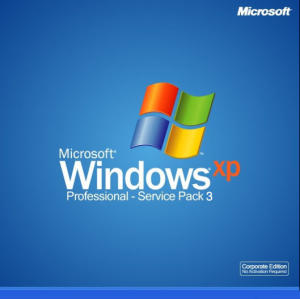
Windows XP Professional delivers a reliable foundation you can count on to keep your computer up and running when you need it most. Not only is the operating system more reliable, it also offers features that make it much faster and easier to recover from system problems. Windows XP Professional, the new standard in reliability and performance, is designed for businesses of all sizes, and for individuals who demand the most from their computing experience. With the ultimate communication and collaboration Installation Instructions:
1. Burn .ISO to disk or transfer it to a bootable USB.
2. Go into your BIOS and change your boot preferance to either disk or USB (Depending on which method your using to install).
3. Install as normal.
JOB DONE!!!
Your newly installed copy of Windows XP is now activated and fully updateable and will pass the MS validation test.
Windows XP SP3 Activated .ISO INFO:
CRC32: 95a25d2b
MD2: 4d7745fb53aa6d4c948cc489e44912ad
MD4: 42e90ce4636046e4f7457d8d326464c2
MD5: c870c1d60c4576476d7e6f62ff3d23e2
SHA1: 77b6ced191e65925d8d48f05e7d0e24964a0d9d8
Download Link
MAGNET LINK [TinyPaste]


Subscribe to:
Posts
(
Atom
)


